Self service - User Management Request
#Introduction The myDRE portal now supports self-service account management, enabling users to submit requests directly for password resets, multi-factor authentication (MFA) resets, name changes, or correspondence email updates.
#Trouble logging in on mydre.org login page
- Click on the Get help link.

- You will be asked to fill in the form to reset either your password or MFA.
- Fill in your
myDRE.orguser name or your corresponding email that is associated with your@mydre.orgaccount. - You will receive a verification email to the email address known to the system to reset your password or MFA.
Please note that when you have requested a password and/or MFA reset, an email is sent with a generated OTP link to reset the password or MFA to your corresponding email known by the myDRE system. Please follow the instructions in the mail. The password/MFA reset is not instant and will be executed by the support team.
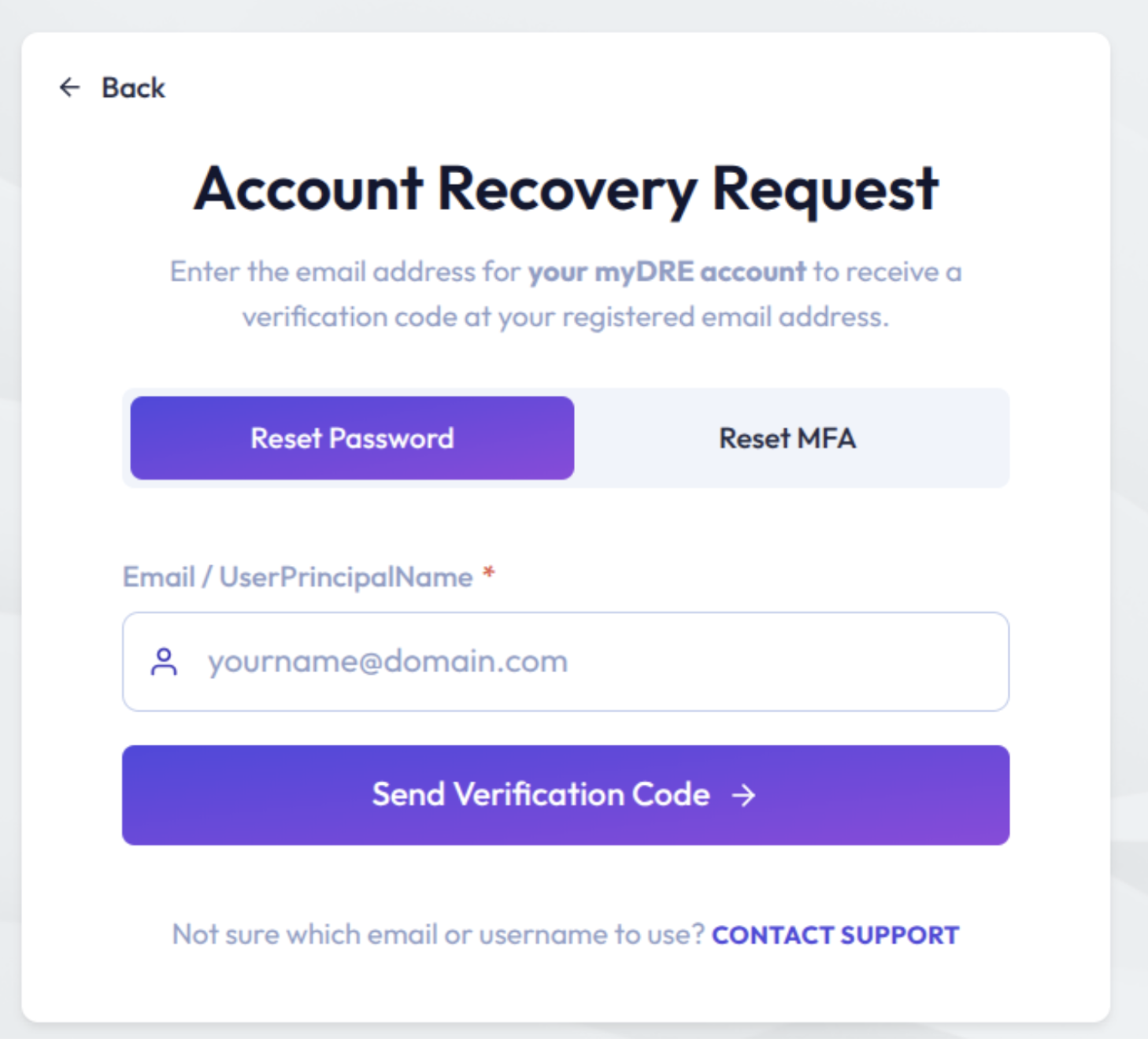
- If you are not sure whether you already have an account or need to reset your corresponding email, you can also contact the support team via the link in the request form.
Submit a user management request when logged to the myDRE portal
- To open your Account Settings navigate to lower left corner (where you see your name and myDRE account name) and click on the three dots
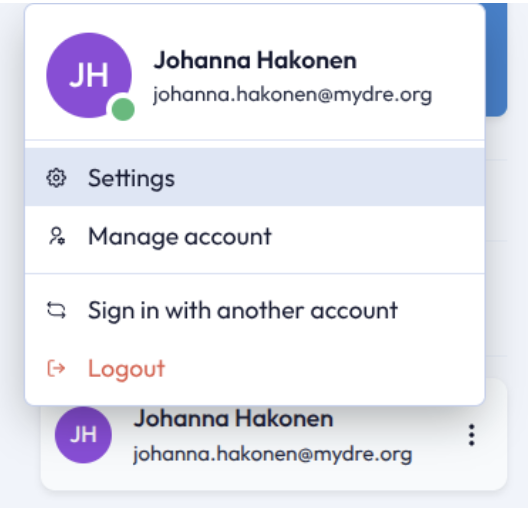
Profile overview page
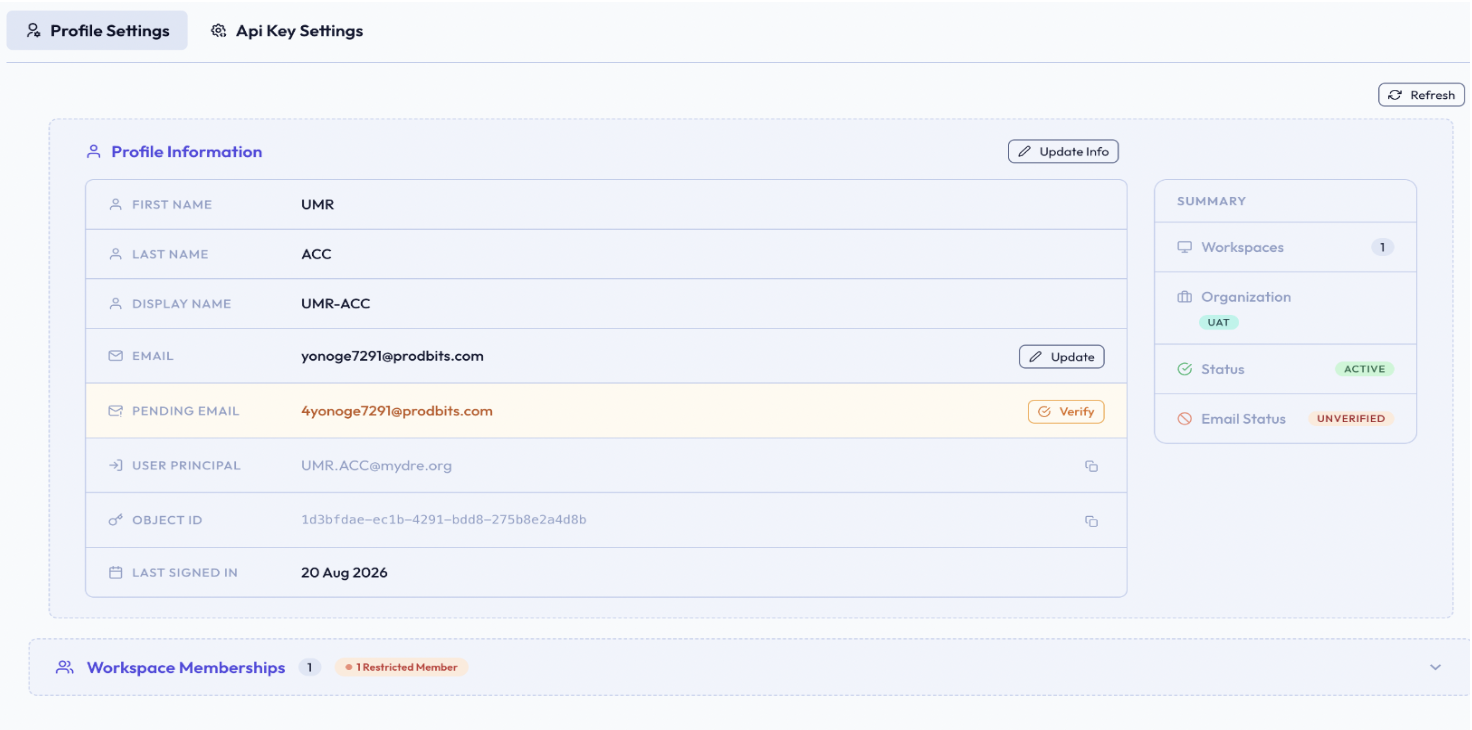
- This will open an overview of your myDRE account that has been configured, including the information such as name, correspondence email address, user principal (your myDRE username) and when last logged in. It will furthermore show you an overview of your workspace memberships.
- In the summary menu on the right you will see a summary of your workspace memberships and account status.
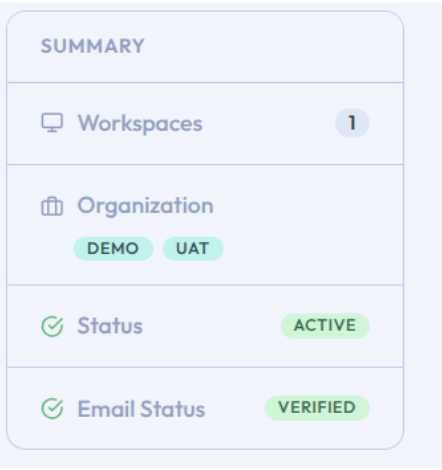
- When you belong to workspaces across multiple organisations, it will show this information in this menu.
- Additionally, any required extra account verifications (such as email confirmation) will be displayed here.
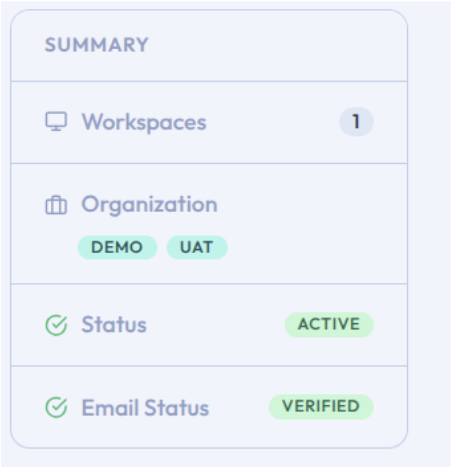
- If you are a member of workspaces spanning multiple organizations, details regarding those memberships will be displayed in this menu.
- Any necessary additional account verifications (for instance, confirming your email) will also appear here.
Updating Your Profile Details
- To update personal information in your profile such as your name, open the Profile overview page and select Update info.
- Enter the specific details you would like to edit, then select Submit Request to send in your changes.
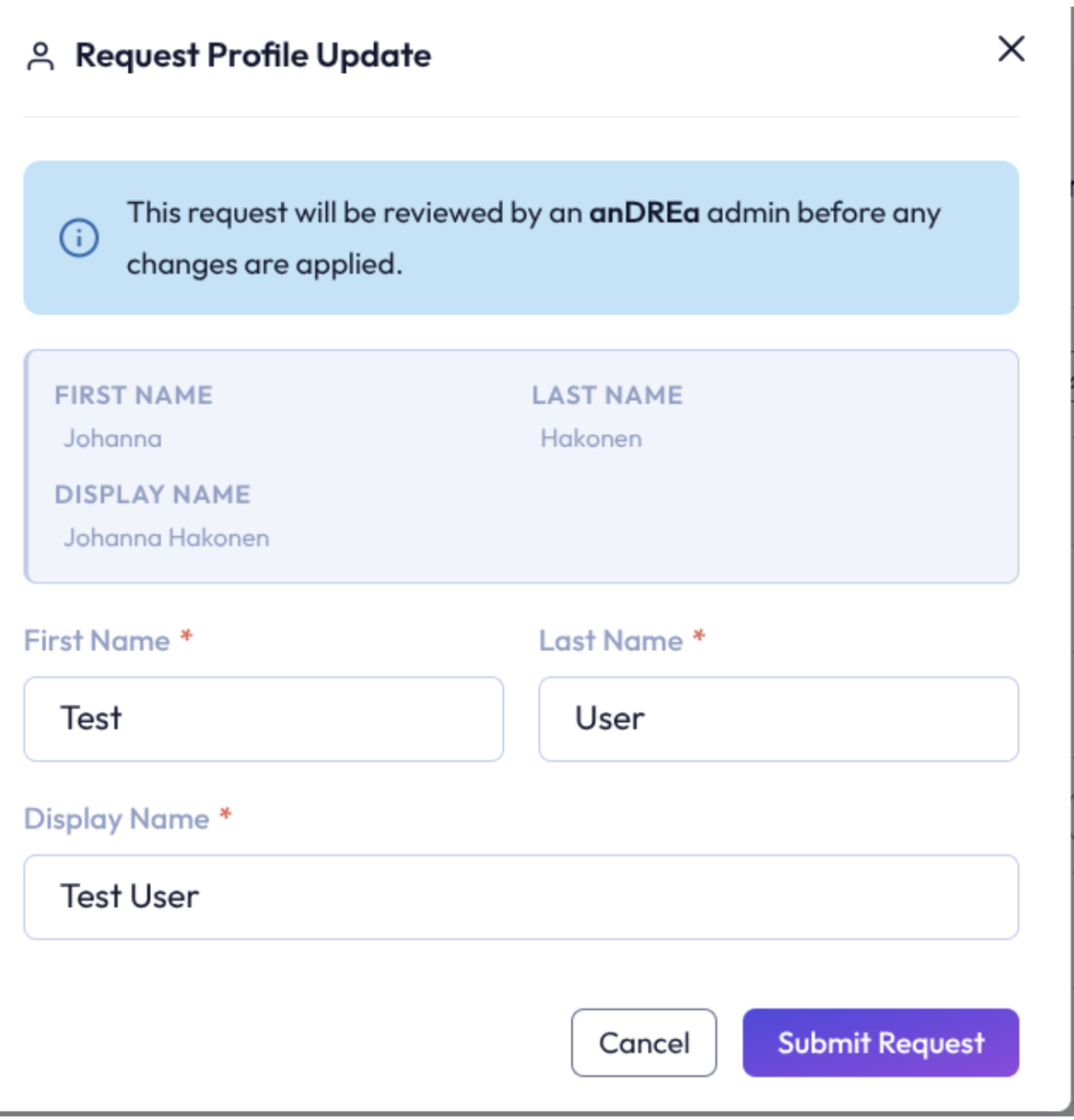
Profile updates undergo validation by anDREa support, meaning changes are not applied immediately and require a brief processing period. You can check your profile Overview to confirm when the update has been completed.

Update correspondence email
An @mydre.org account serves solely as a user login without email capabilities, all portal notifications and account-related updates are delivered to your correspondence email address. Consequently, it is essential that this field contains an email address you can actively access.
Should you need to update this email address:
- Navigate to your profile overview page and select Update.
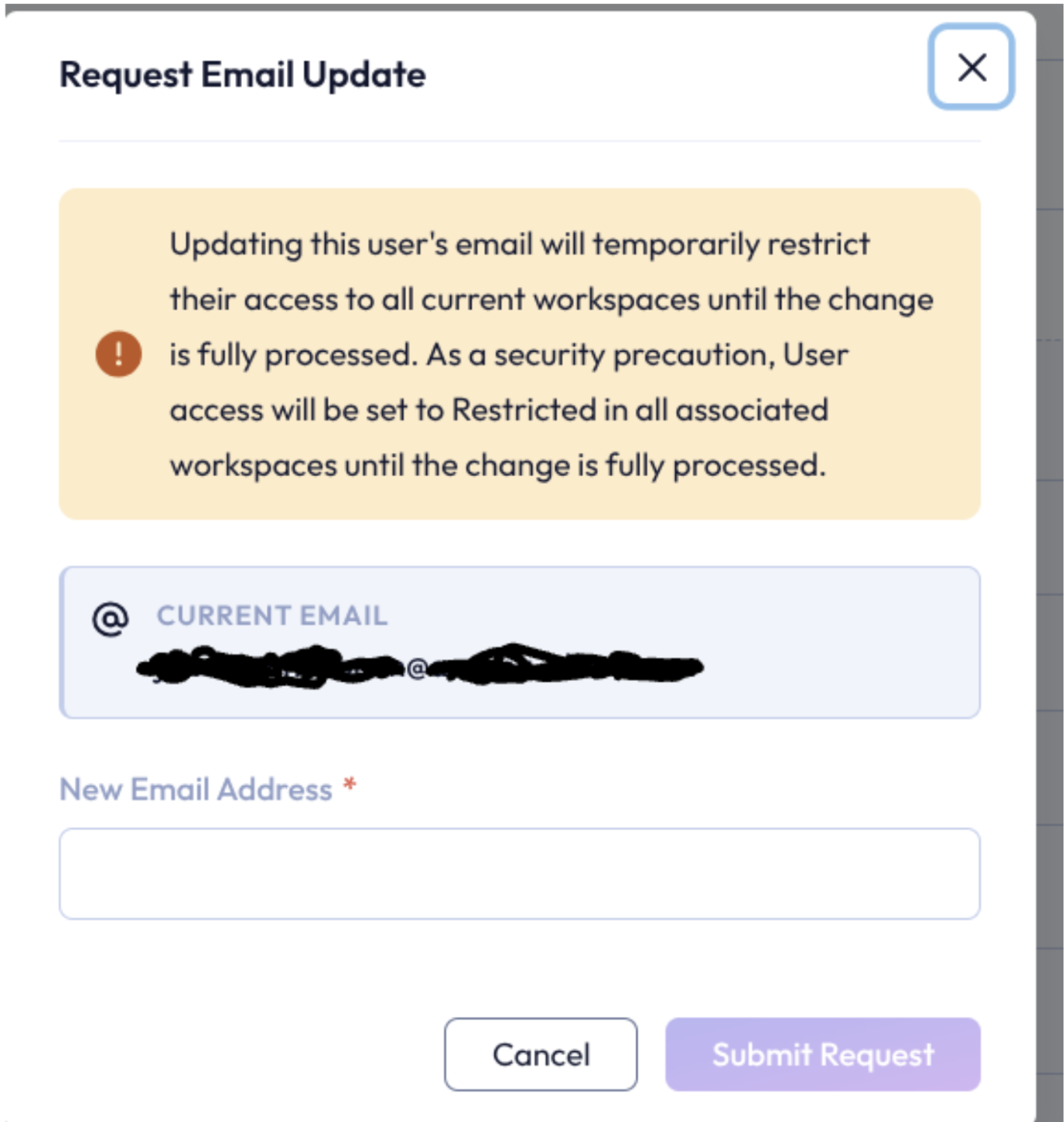
- Provide your new correspondence email address, then select Submit Request.
- Please note that the chosen email address must not be linked to any existing @mydre.org account.
Updating your correspondence email requires re-verifying the new address. Because organisation workspaces may view a new email address as a new identity, your access to any workspaces you belong to will be temporarily set to restricted until the workspace Accountable restores your permissions.